This guide will walk you through connecting to virtual machines in the RIT GCI Cyberrange using the Remote Desktop Gateway.
Quick Start
Download the pre-configured RDP template with all settings already configured:
Download RDP TemplatePrerequisites
- Active RIT account
- Access to the GCI Cyberrange
- IP address of your assigned VM
- VM credentials (username and password)
- Windows Remote Desktop Client installed
Gateway Information
Gateway Server: rdp.cyberrange.rit.edu
Gateway Domain: main.ad.rit.edu
Connection Steps
Enter VM IP Address
Open the downloaded RDP template file or launch Remote Desktop Connection. Enter the IP address of your assigned virtual machine in the Computer field.
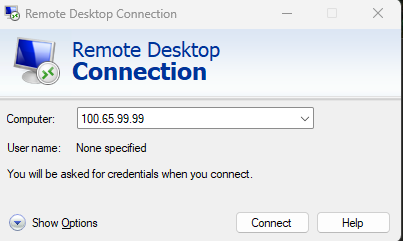
Note: You can leave the User name field as "None specified" - you'll be prompted for credentials later.
Authenticate to RD Gateway
The first authentication prompt is for the RD Gateway server. This allows you to access the Cyberrange network.
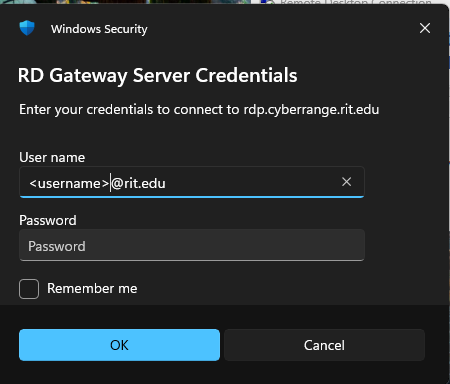
Username format: <username>@rit.edu
Example: abc1234@rit.edu
Password: Your RIT account password
This is your RIT login credentials, not your VM credentials!
Authenticate to Your VM
After the gateway authentication succeeds, you'll be prompted for the credentials of the specific virtual machine you're connecting to.
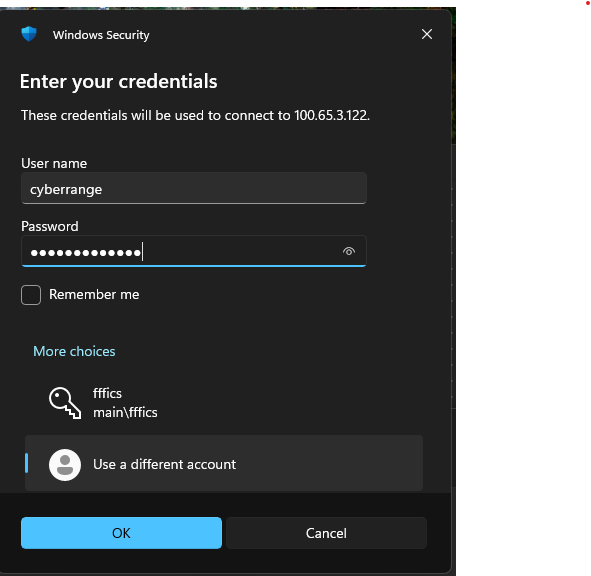
Username: The username assigned for your VM (e.g., "cyberrange")
Password: The password for your VM account
These credentials are specific to your virtual machine and may differ from your RIT credentials.
Connected!
Once authenticated, you'll be connected to your virtual machine desktop. You can now work on your assigned tasks or exercises.
Troubleshooting
Authentication Failed
- Verify you're using the correct username format:
<username>@rit.edufor gateway authentication - Ensure you're using your RIT password for the gateway, not your VM password
- Check if your RIT account requires multi-factor authentication
Cannot Connect to VM
- Verify the VM IP address is correct
- Ensure your VM is running
- Check that you have the correct VM credentials
Gateway Connection Issues
- Confirm the gateway server is:
rdp.cyberrange.rit.edu - Use the provided RDP template to ensure correct settings
- Verify you have network connectivity to the gateway
Connecting from Linux
Linux users can connect to the Cyberrange using FreeRDP or Remmina with RD Gateway support.
Method 1: Using FreeRDP (Command Line)
Install FreeRDP if not already installed:
# Debian/Ubuntu

                        sudo apt install freerdp2-x11


                        # Fedora/RHEL

                        sudo dnf install freerdp


                        # Arch Linux

                        sudo pacman -S freerdp
Connect using the following command:
xfreerdp /v:<VM_IP_ADDRESS> \

                          /g:rdp.cyberrange.rit.edu \

                          /gu:<username>@rit.edu \

                          /gp:<RIT_PASSWORD> \

                          /u:<VM_USERNAME> \

                          /p:<VM_PASSWORD> \

                          /cert:ignore \

                          /size:1920x1080 \

                          +clipboard \

                          /dynamic-resolution
Parameter Breakdown:
/v:- Your VM IP address/g:- RD Gateway server hostname/gu:- Gateway username (your RIT email)/gp:- Gateway password (your RIT password)/u:- VM username/p:- VM password/cert:ignore- Ignore certificate warnings/size:- Resolution (adjust as needed)+clipboard- Enable clipboard sharing/dynamic-resolution- Allow window resizing
Security Note: Avoid storing passwords in scripts. Omit /gp: and /p: to be prompted for passwords interactively.
Interactive Example (recommended):
xfreerdp /v:100.65.39.99 \

                          /g:rdp.cyberrange.rit.edu \

                          /gu:abc1234@rit.edu \

                          /u:cyberrange \

                          /cert:ignore \

                          +clipboard \

                          /dynamic-resolution
Method 2: Using Remmina (GUI)
Install Remmina if not already installed:
# Debian/Ubuntu

                        sudo apt install remmina remmina-plugin-rdp


                        # Fedora/RHEL

                        sudo dnf install remmina remmina-plugins-rdp


                        # Arch Linux

                        sudo pacman -S remmina freerdp
Configure Remmina:
- Open Remmina
- Click the "+" button to create a new connection
- Set Protocol to "RDP - Remote Desktop Protocol"
- Fill in the Basic tab:
- Server: Your VM IP address
- Username: Your VM username
- Password: Your VM password
- Go to the Advanced tab
- Set Security: to "Negotiate" or "RDP"
- Check "Ignore certificate"
- Scroll down to find Gateway Settings:
- Gateway server: rdp.cyberrange.rit.edu
- Gateway username: <username>@rit.edu
- Gateway password: Your RIT password
- Gateway domain: main.ad.rit.edu
- Save and connect
Method 3: Using the RDP Template File
You can use the provided template with FreeRDP:
xfreerdp cyberrange-rdp.rdp \

                          /v:<VM_IP_ADDRESS> \

                          /gu:<username>@rit.edu \

                          /u:<VM_USERNAME>
This will load the gateway settings from the template file and prompt for passwords.
Linux-Specific Troubleshooting
- Connection fails immediately: Verify FreeRDP version supports gateway (
xfreerdp --version). Version 2.0+ recommended. - "Failed to connect" error: Check gateway parameters are correct, especially
/gu:format - Authentication loops: Ensure you're using
<username>@rit.edufor gateway username, not just username - Certificate errors: Use
/cert:ignoreor/cert-ignoredepending on FreeRDP version - Display issues: Try different security settings:
/sec:rdpor/sec:tls
Manual Gateway Configuration (Windows)
If you prefer to configure the RD Gateway manually instead of using the template:
- Open Remote Desktop Connection
- Click "Show Options"
- Go to the "Advanced" tab
- Click "Settings" under "Connect from anywhere"
- Select "Use these RD Gateway server settings"
- Enter server name:
rdp.cyberrange.rit.edu - Select "Ask for credentials"
- Click OK to save
Summary
Two separate authentications are required:
- Gateway Authentication: Your RIT account (
<username>@rit.edu) - VM Authentication: Your assigned VM credentials